Workflows

Plan a workshop day with several parts

How to prepare a workshop day in RoomRadar: lay out the parts as blocks with times and a topic each, get one QR code per exercise for your deck, open each part from the plan, let the tables rejoin with one tap, and end the day with one card that grew after every part.
Updated Oct 3, 202611 min read
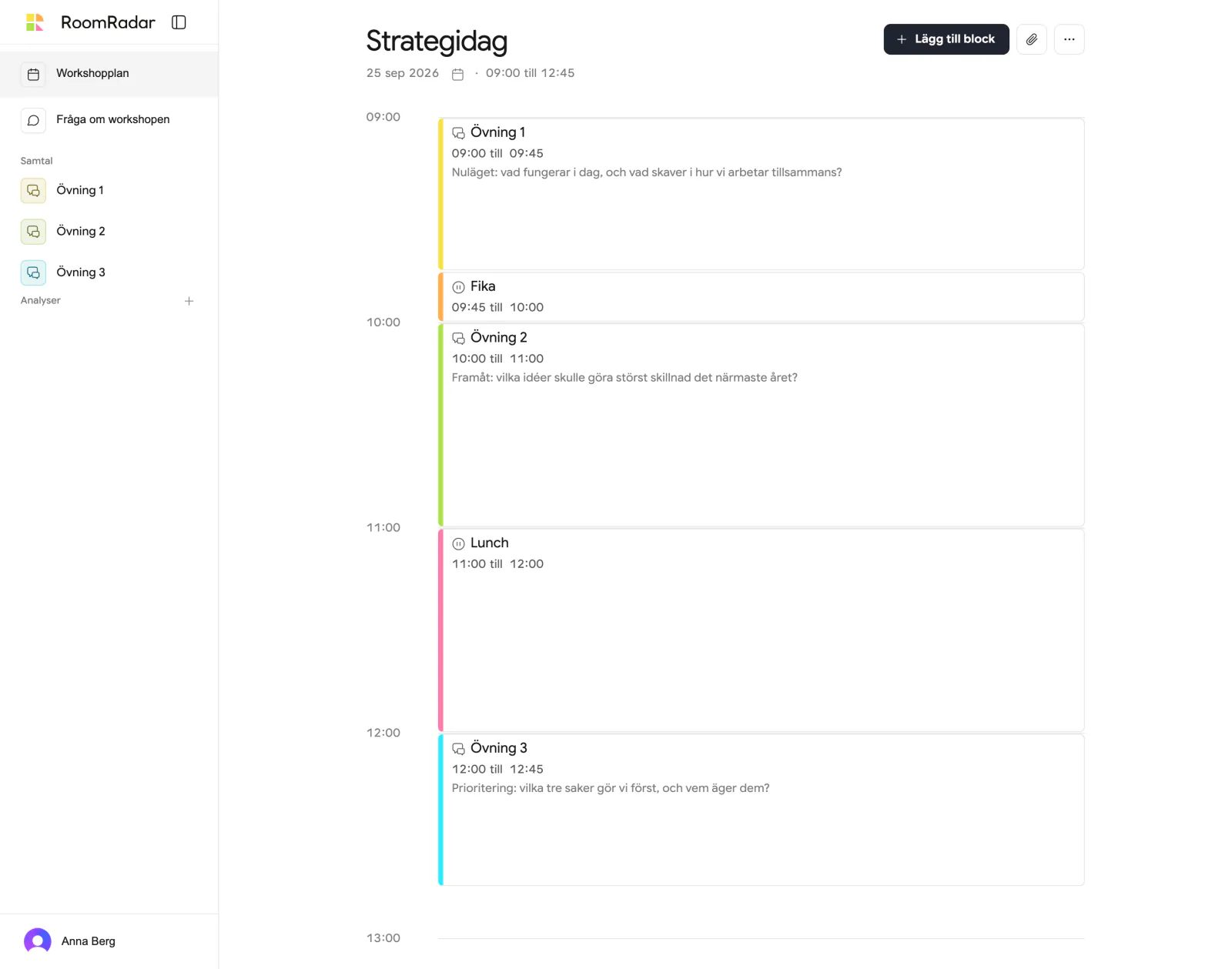
Förberedelse: a day on an hour axis with three conversation blocks and their topics, Fika and Lunch

To plan a workshop day in RoomRadar, press Skapa workshop on home, add a block per part of the day, give each conversation a time and a topic, and download its QR code for your deck. On the day you press Öppna on each part from the plan, which takes you to its connection screen, and Starta there once the tables are in; the tables' phones rejoin later parts with one tap; and at the last stop the day's card is ready to download and send. A workshop is the container for a day (or several) of conversations; a single conversation with no plan needs none of this and works exactly as before.

Lay out the day
1
Make a workshop
On home, press Skapa workshop, the one button there. You land in the new workshop's first conversation, on its connection screen; in the sidebar the workshop's row opens and folds closed. Open that row and press its name, or the header's back chevron, to reach Förberedelse: the workshop is Namnlös workshop with today's date and its first conversation already on the axis. Give the workshop a name from the title if you like; you never have to.
2
Add a block per part
Lägg till block adds a part after the last one, touching it, so the day is one chain. A block is a Samtal (recorded, gets its own code), a Paus, or Annat (individual work, a plenary, anything unrecorded that matters as context). Each starts untimed, as a card.
3
Set the times
Sätt tid on a card, or drag it onto the hour axis once one block has a time. Timed blocks follow each other as a chain: change one block's length and everything after it glides together. Dragging a block's body moves that block alone and pushes nobody, into free time only: held over another block it turns red, and let go there it glides back to where it was with a short note, "Blocks cannot overlap." If two blocks share a time anyway (an older plan, a lock the chain ran into), both show red and a small (i) says, on hover or tap, which one it shares the time with. Dragging a block away leaves a gap, and a gap is what an overrun uses first. The time under a block's name is editable in place, and the block's sheet edits the same thing as Från, Till and the length beside them. To pin a block to its time (a lunch, a keynote), use Lås in its menu: the lock glyph after the name reads Tid låst on hover, and a click unlocks it. Blocks with no time yet sit in the Utan tid row above the first hour.
4
Say what each conversation is about
Open a block's settings (the gear). The field "Vad ska samtalet handla om?" is the text the analysis reads during that part. The Grupper row has a stepper, "Antal grupper": four plans four tables ("Grupper · 4"), each with a pencil for its name, so they wait as rows on the connection screen and on every phone. For many tables, click the number and type the count, then Enter. If you plan more tables than your plan lets connect, a quiet note under the count names the plan the day needs; you don't have to upgrade now. Under the list, Ämne is "Samma för alla" or "Eget per grupp"; with "Eget per grupp" each table gets its own topic field under its row. The Till grupperna row, just below Grupper, plans what the tables' phones will show during this part, a screen text, a question or a timer, "vid start" or "efter 10 min"; see plan what the groups will see. Drop a file for this part into the sheet's file area ("Dra filer hit"); files for the whole day go behind the paperclip in the header.
5
Get the codes for your deck
Every conversation block has its own code and QR in its sheet. Ladda ner saves that part's QR as an image, so a three-exercise day gives your deck three QR slides. The codes work from the moment the block exists, weeks before the day.
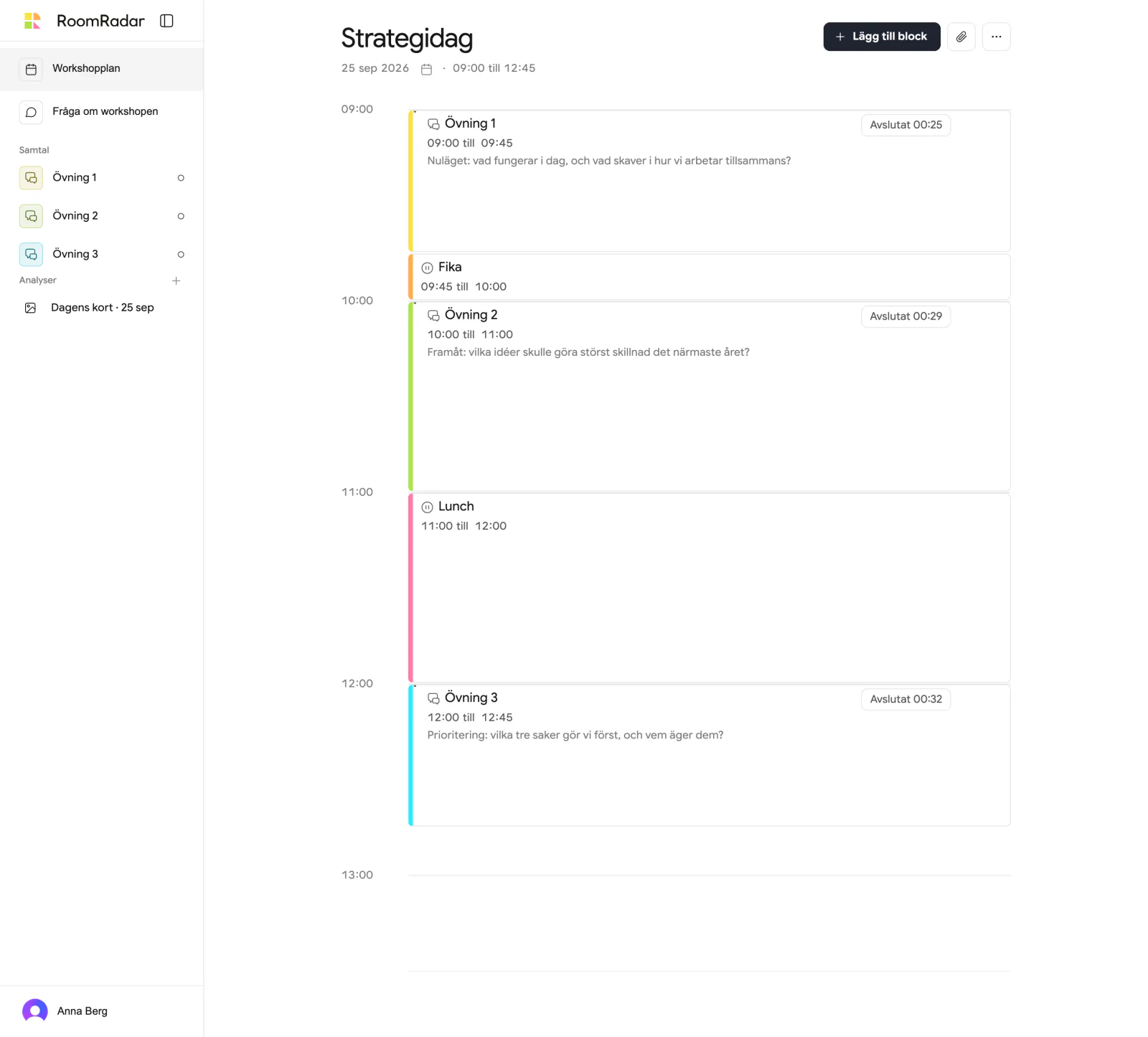
The workshop day after it was recorded: three conversation blocks marked Avslutat between Fika and Lunch on the hour axis, Dagens kort in the sidebar
Blocks are calendar events: a colour edge, a kind icon, the times. Just nu appears on the day itself.
The block's sheet: title, from and to, the Grupper disclosure, the topic text, and the code and QR on the right
The sheet grows downwards: times, the topic, per-table topics, files, then the code.
The plan is an expectation, not a lock. Running over, skipping a part, starting early: nothing moves on its own. When a part runs past its planned end the plan asks, "Övning 1, i grupp drar över planen. Vill du korta pausen eller skjuta resten?", and you choose, or press Inte nu.

Run the day from the plan

1
Open the workshop
The day view shows Just nu on the axis with the minutes left of the current block, and Öppna on the next conversation. Nothing starts from the plan: the button only opens the conversation, the recording starts on the next screen.
2
Start the first part
Öppna on part one (or its row in the sidebar) opens the conversation on its connection screen, "Koppla upp grupperna": the code and QR in a card at the top right, the planned tables as rows marked "inte uppkopplad". The tables scan the first QR and pick their row (or type a name under Ny grupp); a row says "hörs" once its phone hears the room. The screen's Starta is disabled until one group is in ("Koppla upp minst en grupp först"); press it and the recording begins, the analysis reading the block's topic as they talk. A send planned "vid start" goes out to the phones at that moment. The workshop is one closed row above the group list; click its chevron to see the plan without leaving.
3
Stop, and let the tables choose
Stoppa. The phones show what was captured and let each table untick what it does not want shared, as at every stop. Then: Samtal 1 av 3 är inne, and Dagens kort with one part; a planned table that never joined is named, "Bord 4 var inte med." Fortsätt takes you back to the plan at Just nu.
4
Start the next part
Öppna on part two, then Starta on its connection screen once the tables are in. The tables scan the second QR (or type the code shown on its slide). Their phones say Välkommen tillbaka! and Vilken grupp är ni? with the table they were last time already picked and marked "Senast": Fortsätt, and they read "Samtal 2: Övning 2, i grupp" with the task you wrote for that part. A table that did not exist last time types a name under Ny grupp.
5
End the day
After the last stop, Dagens kort holds every part. Ladda ner and Skicka till grupperna; the tables get the day's card on their phones. The card also has a page of its own: Dagens kort under Analyser in the sidebar, with Skicka till grupperna at the top, so you can send it after you have left this screen. The button says how many tables it reaches, and stays grey with the reason while the card is still being drawn or no phone was with the day.
A phone showing Välkommen tillbaka, Vilken grupp är ni?, the list of tables with colour chips, and Ny grupp
Rejoining is one tap. The tables are remembered across the day, so the analysis can follow a table from exercise to exercise.
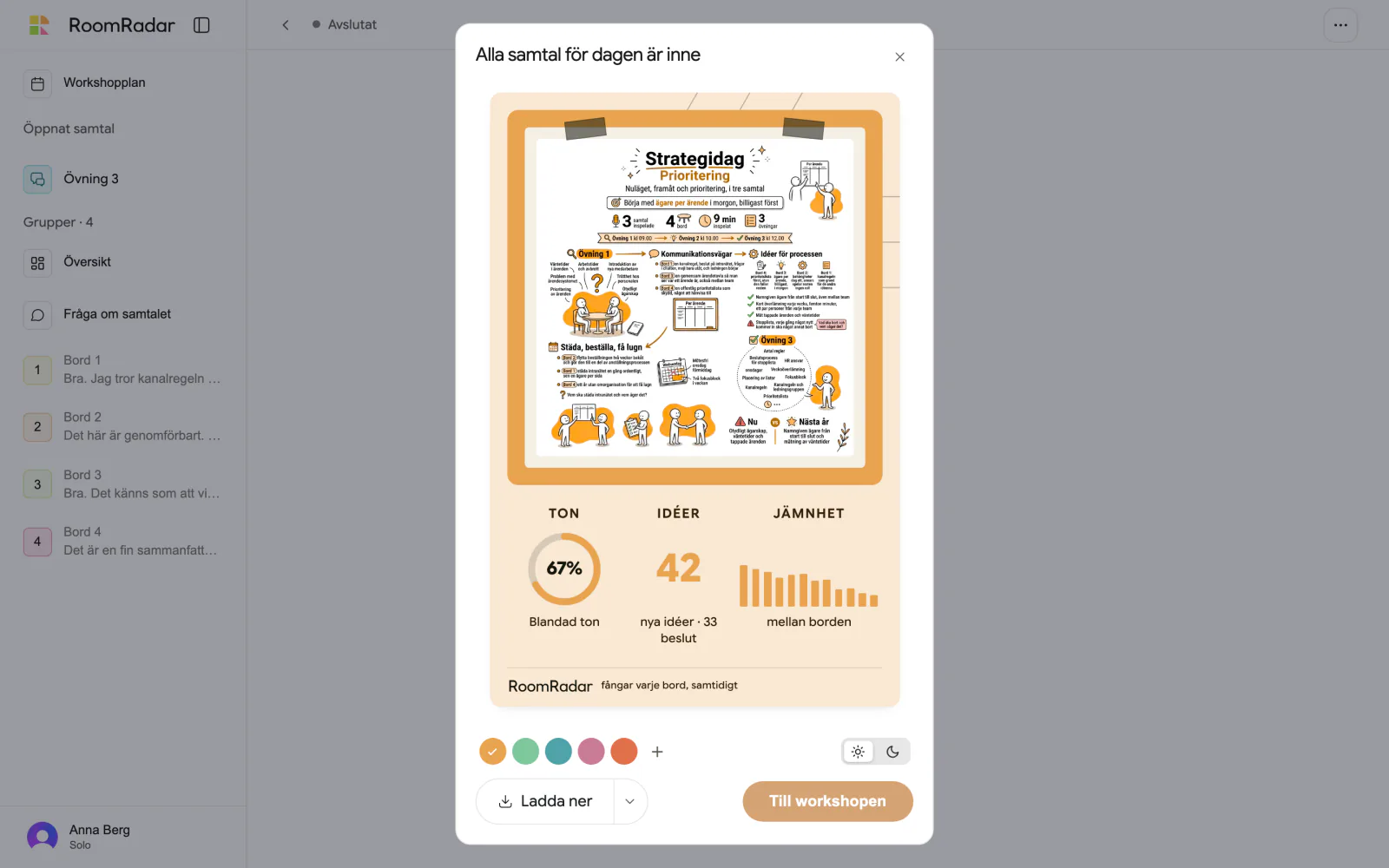
The screen after the last stop: Alla samtal för dagen är inne, the day's sketchnote card, Ladda ner and Till workshopen
One card per recorded day. It grew after each part; the last stop is where it is sent.
If the tables are reshuffled between exercises, set Grupperna to "Nya i det här samtalet" in that part's sheet before the day (the day's first samtal has no such choice, there is nothing to continue from) (the row then reads "Grupper · nya i det här samtalet"). The phones then join fresh instead of picking a table, and later analyses never ask whether the tables match.

Afterwards

Every part is a recording with its own analysis: Översikt and a page per table. In the workshop's sidebar, Ny analys makes a report over the parts you tick, "Vilka delar ska analysen bygga på?", one part or the whole day, and it appears as Analys 1 under Analyser. Tables that rejoined through Välkommen tillbaka are already linked, so the report follows each table across the day without asking. The workshop's top-right menu holds Bjud in samarbetare (a link, and people you invite by email; see share workshop results as a link), and Grupper: a page with every group as a row across the day's conversations, where you rename, merge or split a group. See see every group across the day. See combine several conversations into one analysis.

Home lists one row per workshop with a strip of its parts; search finds a workshop by any part's name. A workshop you never named reads "Namnlös workshop · 24 sep · Övning 1" so you can tell it from the one next to it.

FAQ

Do I have to plan a workshop to record one conversation?

No. Skapa workshop makes a workshop with one conversation and lands you on its connection screen; press Starta and you are recording, no plan, no name, two clicks. A day with several parts starts the same way and grows from the workshop behind it.

Does the workshop have one code, or one per part?

One per conversation. That is why the deck gets one QR slide per exercise, and why the phones ask "Vilken grupp är ni?" when the next part starts. The workshop itself has no code.

Do the groups from the last conversation come along to the next one?

Yes. Phones join by themselves the conversation you open next, even one earlier in the plan. A local group (an audio source on your computer, such as AirPods) is reconnected to the same source when the next conversation opens, and a digital group in Zoom, Teams or Meet gets a new bot in the same call. If the browser needs a click for the microphone, the row shows Koppla upp lokal grupp; if the source is no longer there it shows ljudkällan saknas and Välj ljudkälla, and a bot that did not get in shows kunde inte ansluta with Försök igen. Each group on the connection screen has three dots (shown when you hover the row) with Byt namn and Ta bort grupp.

What happens if a part runs long?

Nothing, on its own. The plan shows planned and actual side by side and asks once whether to shorten the break or shift the rest. You choose, or not.

Can I plan more groups than my plan allows?

Yes. Planning is never blocked. The sheet says, for example, "Fler än 5 grupper kräver Veckopass när samtalet körs. Du kan planera fler nu": you need a plan that takes that many groups for the conversation itself, such as the weekly pass. Without it, only your current number of groups can connect when it runs.

Can I plan several days?

Yes. Pick a span in the date picker and the header gets a day navigator. Each day has its own start, its own blocks and its own card; nothing moves across a day boundary.

Can the chat build the plan from my deck?

Drop the deck behind the paperclip (Material) and ask Fråga om workshopen at workshop level to make a plan from it. It reads the parts, the tables and, when your material assigns a task to specific tables, each table's own topic, then asks once for whatever is still missing (a start time, a total length); answer, or just say to go with the times in the file, and it builds the whole day, groups and topics included, in one go, shown so you can undo it.

What is on the day's card?

The same card as a single conversation gets today, grown over every recorded part of the day: what the tables shared, in the order the day ran. It is sent to the phones at the end of the day, not after each part.

Does a deleted or empty conversation count toward the day?

No. A conversation you delete, and one stopped before anything was recorded, does not count: neither 2 of 3 done on the home page nor Every conversation of the day is in after the last stop waits for it. If you run the conversations in another order than the plan, the screen after the stop says which one is next, and the day is in only when no conversation is left to run.

What if the connection drops while I edit the plan?

Keep going. Every change to the plan (adding, moving, resizing or removing a block, the tables and the sends in a part's settings, renaming the workshop here or on home) lands on screen at once and is kept in the browser until the server has it. Without a connection a pill at the bottom says Sparas när du är online igen; your changes stay as you left them, also if you reload the page, and they are saved on their own, in the order you made them, once you are back online. If a change cannot be saved at all, the pill says Kunde inte sparas and why, and the plan goes back to how it was.