How to start a workshop transcription session
Start a RoomRadar session in two clicks: Create workshop on home, then Starta on the connection screen once your tables have scanned the code. Every group's conversation is captured from the first minute.
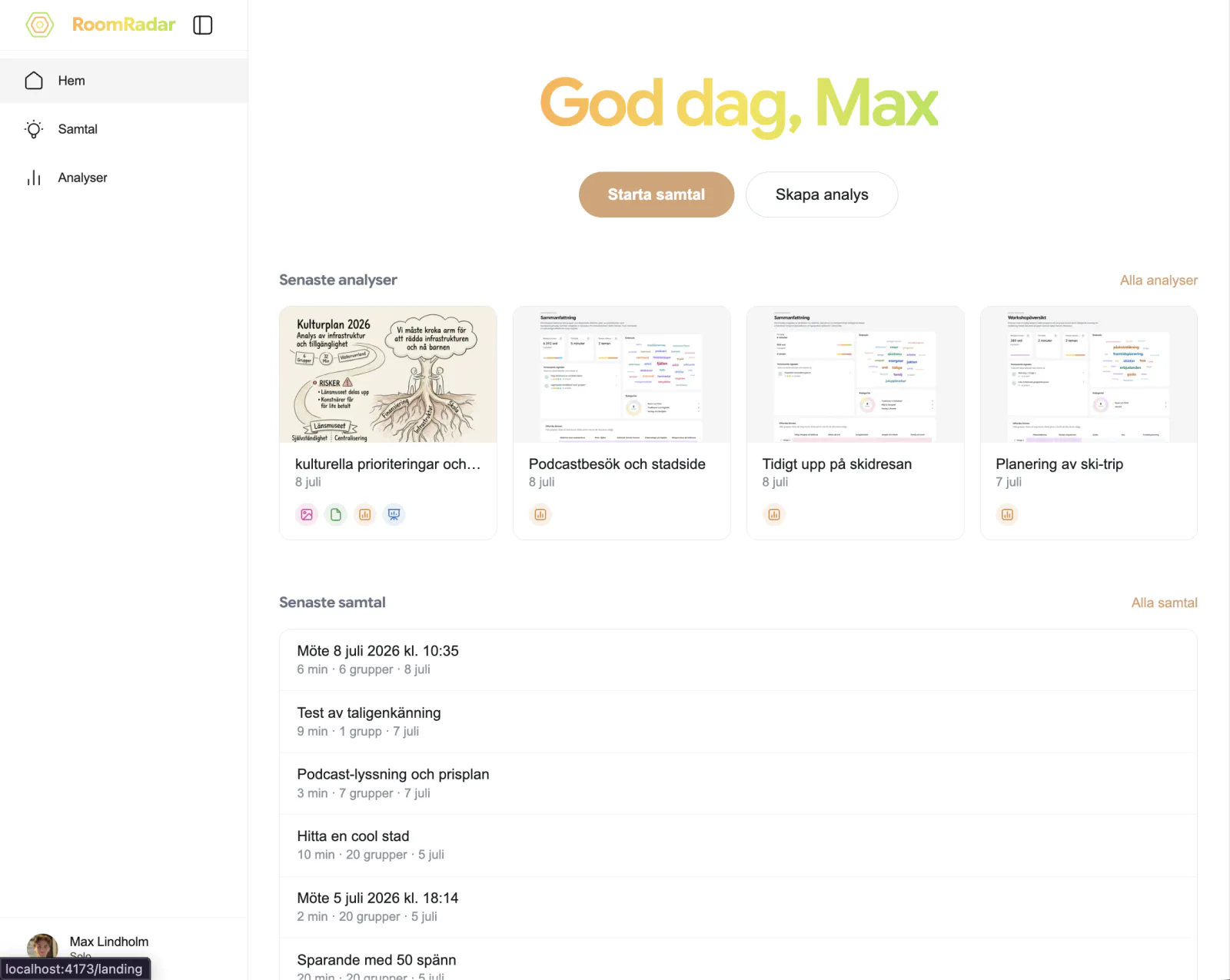
To start a workshop transcription session in RoomRadar, press Skapa workshop on home. That makes a workshop with its first conversation already in it and lands you in that conversation, on its connection screen: the room code and QR code in a card at the top right, and a list that fills with tables as they scan. Press Starta when they are in. A single quick recording is exactly this, two clicks and a code, no plan; a full day with several parts starts the same way and grows from the workshop behind it. See plan a workshop day for the longer road.
Start a session, step by step
Creating a session vs. starting the meeting
Creating a session and starting the meeting are two different steps, and the distinction matters. Skapa workshop only opens the connection screen, an empty room with a code, ready for groups to join. Nothing is recorded or transcribed yet.
Starta on that screen is what actually begins the meeting. RoomRadar keeps it disabled until at least one group is in, and says so on hover: "Koppla upp minst en grupp först". A table still marked "inte uppkopplad" or "tyst" does not stop you, it just is not heard yet. Once you press it, transcription runs for every table in parallel and the clock starts.
What "live" captures
Once you press Start, RoomRadar transcribes every connected group's table in parallel and in real time. Each group gets its own page with its transcript and its analysis, and Översikt builds theme rows and a timeline across all groups as the discussion develops. See monitor multiple breakout group discussions live.
Rooms you prepared but never started
Every conversation in a workshop has its own room and code from the moment it exists, and the room is kept for as long as that part is in the plan. Nothing is swept, nothing needs locking: a QR code you print for next week works next week. The price is that every Skapa workshop you press makes a workshop; one you do not want is one card on home, deleted from its menu (the dots at the foot of the card, or a right click) with Ta bort workshop.
FAQ
No. The sheet's name field is optional; an unnamed conversation shows as "Samtal 1" inside its workshop and the workshop as "Namnlös workshop" on home, with the date. Rename either from its title whenever you like.
Yes, and it is worth doing. Groups can join and confirm their audio while the session is idle; pressing Start just begins the actual transcription and timeline once every connected group is ready.
The workshop and its room stay. Open the row on home and press Starta again; the code is the same.
Yes. A room that belongs to a part of a workshop is kept as long as the part exists. Delete the part or the workshop and the room goes with it.
Into Skapa workshop. The quick recording is the same two clicks: Skapa workshop lands you on the new conversation's connection screen, and Starta there begins it. The workshop behind it is one closed row in the sidebar until you want it.