Monitor multiple breakout group discussions live
Read the live workspace while it runs: a group list that shows who is talking, an overview that lays every table out theme by theme, and a page per group with its positions, what it has arrived at, and its transcript, so you can tell which table needs you without walking the room.
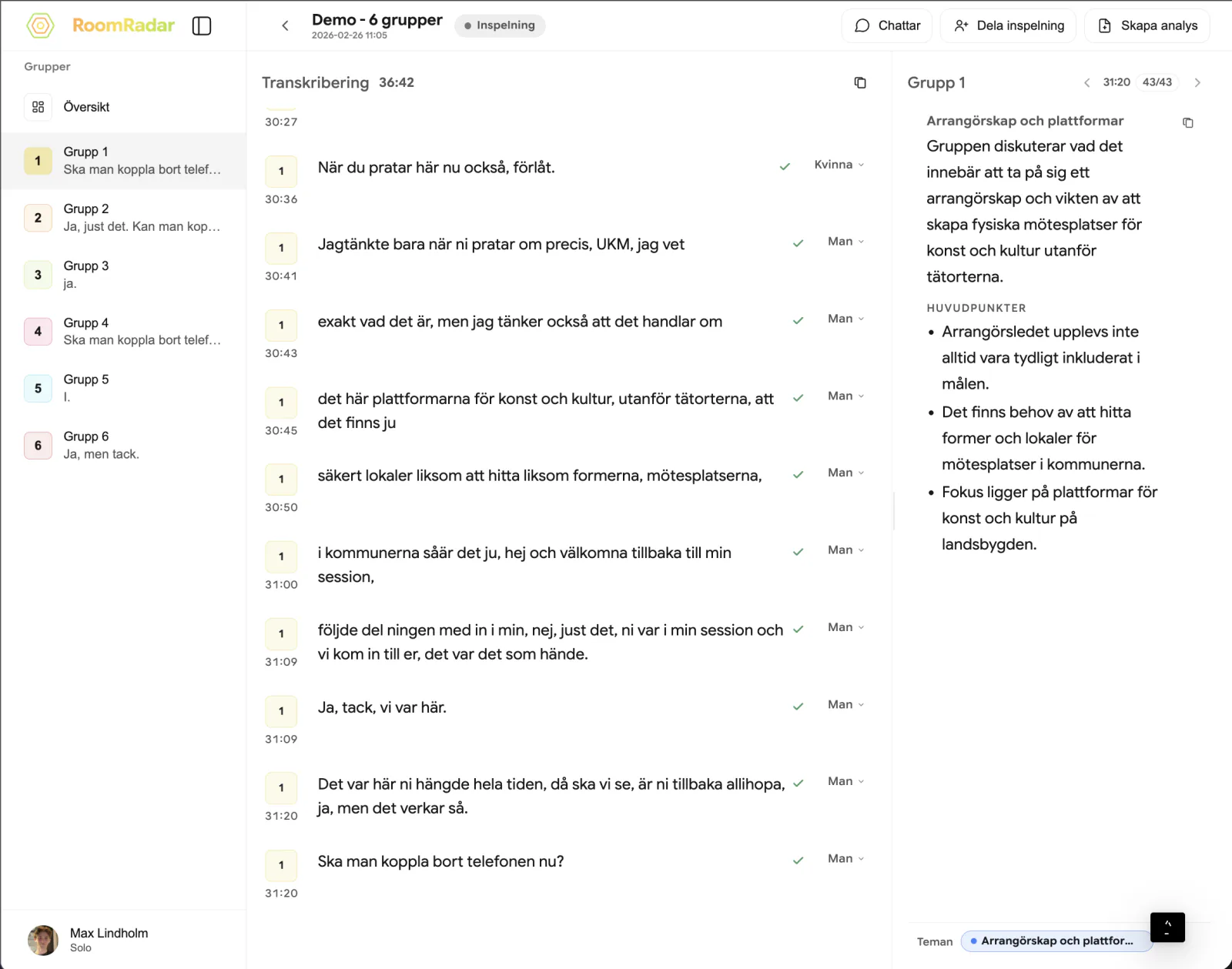
To monitor multiple breakout group discussions live, RoomRadar gives you three levels: the group list in the sidebar shows who is connected and the last thing each table said; Översikt lays every table out theme by theme, so you see the room without opening a single group; and each group page shows one table's positions, what it has arrived at, and its transcript. Each level is one click deeper than the last. This guide covers reading all three.
The group list: who is talking
Every connected table is a row in the sidebar with its number chip in its own colour and its last line under the name. A row lights while its table is talking, shows a muted state if you have muted it, and says Frånkopplad when its phone has dropped. A table with two phones on it says "2 telefoner", quietly; it is still one group. Grupper · 3 at the top counts them. Click a row to open that group's page; click Översikt above the list to go back to the room.
Översikt: the room, theme by theme
The overview is theme-first. Under Teman diskuterade each row is a theme with its share of talk time, how many proposals and decisions it carries, and, when you expand it, every group's position on it in that group's colour, on equal footing. Anything two or more groups share appears once under Gemensamt. Above the themes, a timeline puts every group on one time axis, one row per table, with a switch between Teman, Sentiment and phase, so silence reads as empty space and a long single-colour block reads as sustained focus. A group picker (Alla grupper by default) narrows everything below it.
Fråga om samtalet: ask the room a question
The row right under Översikt in the sidebar is Fråga om samtalet. It opens a chat in the main pane, the same shape as on the workshop page (Fråga om workshopen) and on an analysis (Fråga om analysen): the answer streams in, a plan change you asked for shows as a card with Ångra allt, and when the chat had to read something outside the samtal to answer (an earlier samtal's summary, a file, the day's card) the answer says so in one line underneath, "läste: Samtal 2". Inside a workshop the chat is the samtal's own; it reads an earlier samtal or the plan by itself when a question needs it. It can also count and find words in the transcript instead of guessing: ask "Hur många gånger sades ordet budget?" or "När nämndes biblioteket första gången?" and the answer comes with the number, the clock time and the table, with "sökte i orden" underneath. Earlier conversations sit behind the clock glyph, named by their first question; + starts a new one. On a phone the chat is the whole screen.
The group page: one table, from its own side
Click a group and its page opens on Analys, with Transkribering beside it for the raw feed. The page is written from that group's point of view:
Åsikter lists the themes this group has engaged and where it stands on each, next to the other groups' positions on the same theme. Vad gruppen har kommit fram till is the ledger: decisions (Beslut), proposals (Förslag), concerns (Farhåga) and questions (Fråga), each with a timestamp, and Inte öppnat än at the bottom for the room's themes this group has not touched. Var tiden gick shows this group's minutes per theme against the rest of the room. Mätbara skillnader is what is counted, not guessed: fewer themes than the room on average, alone in its position on a theme, most time on something nobody else spent time on. Delat med andra lists what this group and others arrived at independently.
Two cards on the page are made when you ask: the written Sammanfattning and the Sketchnote, both with Skapa and a range (Senaste 5 min, Senaste 15 min, Hela samtalet, Egen period). Everything else updates by itself. See how live summaries work for why.
Any timestamp on the page opens Transkribering at that moment, highlighted, with Tillbaka till analys to return where you were. The choice of Analys or Transkribering follows you between groups for the rest of the session.
The header: Pausa, Stoppa, and the menu
The live header keeps the two controls you may need instantly, Pausa and Stoppa, and puts everything else behind the … button next to them. The chat is not there any more: Fråga om samtalet is a row in the sidebar right under Översikt, and it opens in the main pane like Översikt does (see below). Interagera med grupper pushes screen text, a question, a timer or captions to the tables' phones, and lists what the sheet planned for this part under "Planerat för det här samtalet" with a Skicka nu on each row. Notiser is the alerts panel. Bjud in samarbetare creates a share link. Conversation info opens the part's sheet, and Anslut fler opens the code page again for a late table: the QR, the code and the link to share, with Fler sätt att ansluta under them for a bot in a Zoom, Teams or Meet call (Anslut digitala grupper) or this computer's microphone as a group of its own (Anslut mikrofon). Below those, the paperclip (Material) takes documents and notes that the live analysis and the chat read.
Let the room tell you where to go
You do not have to watch every row. Notices ask, they do not judge: "Grupp 4 verkar inte ha kommit in på uppgiften än, vill du titta?" or "Grupp 2 har varit tyst i 4 minuter, vill du titta?", each with Titta and Inte nu. They never fire in a part's first minutes, and one dismissed notice does not come back. In a workshop with a plan, a notice can also tell you a part is running past its planned end; the plan page itself asks whether to shorten the break or shift the rest, and nothing moves until you choose there.
FAQ
Into the group page. The rolling summary became a summary you create for a range with Skapa; the statistics became Var tiden gick and Mätbara skillnader, which count minutes, themes and points instead of words and characters; the visual became the Sketchnote card on the same page.
Same data, transposed. The overview is theme-first: a row is a theme and the groups appear inside it. The group page is group-first: the group is the subject and the themes appear inside. The overview is the index, the group page is the article.
It needs a few minutes of talk across the tables. Early on it says it is still building from moments generated during the conversation.
Listening is a control on your side; nothing changes on the participants' phones either way.
Because it has taken no position on that theme. A group with no stance is left out rather than placed in the middle: silence is not neutrality.
RoomRadar tries again on its own when the picture service is busy, and switches to a second picture model if the first one turns the drawing down. If it still does not work, the card says Bilden kunde inte ritas just nu. Försök igen om en stund. Press Skapa again a little later. A drawing that took too long is not retried automatically, so you never pay for the same picture twice.