Edit the text document, by hand or with the AI
How to edit the text document of a workshop analysis in RoomRadar: type into any block where it is, move or turn blocks with the handle menu, and ask the AI in the floating box to shorten, restructure or summarise, watching the change land with Ångra one click away.
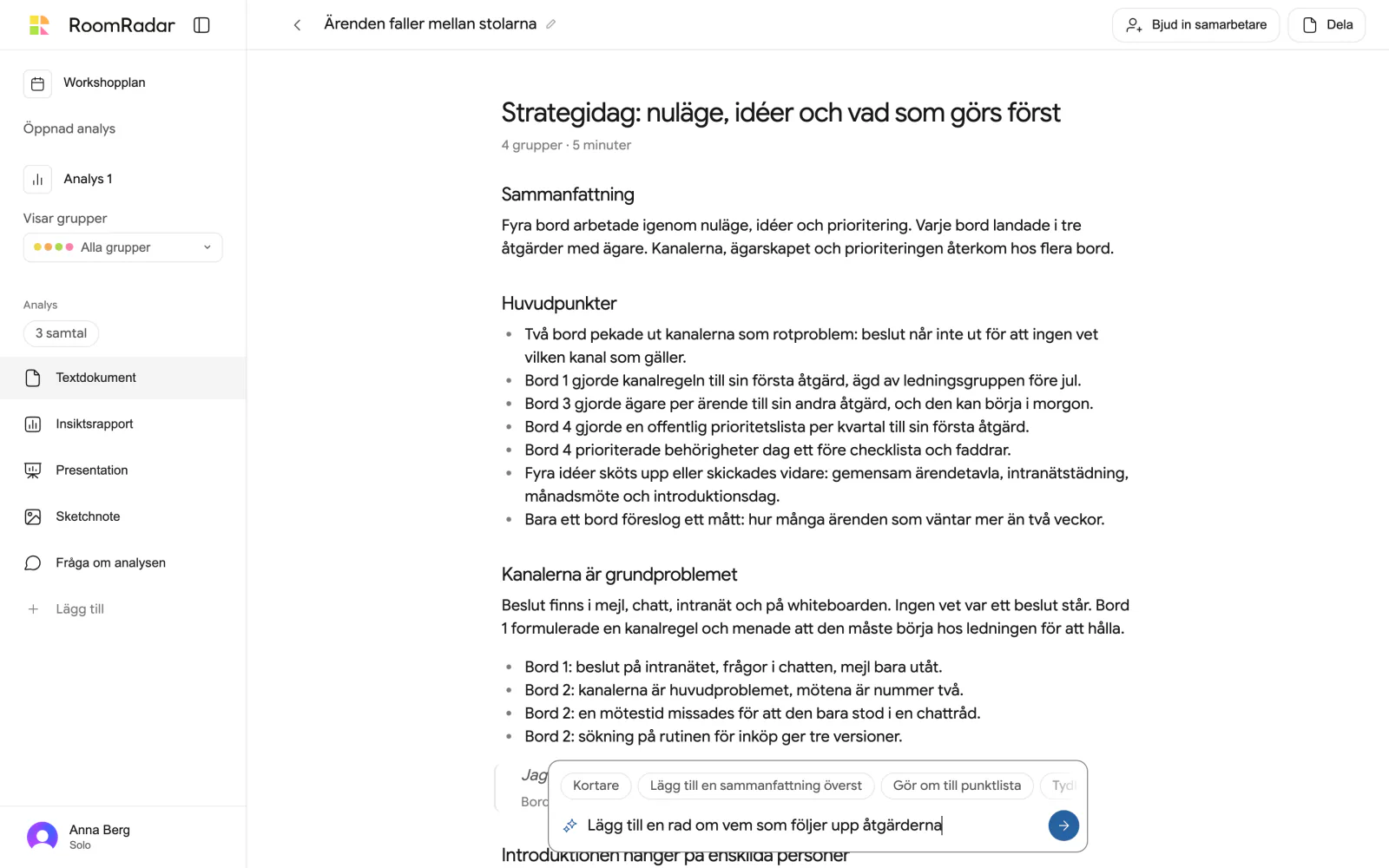
To edit the text document of an analysis, open the analysis and choose Textdokument: the page is the editor. Click into any paragraph, heading, list, callout or quote and type; it saves by itself a moment after you stop (a small "Sparat" appears). To let the AI do the work, use the box under the document: type what you want changed, or press one of the quick asks, and watch the blocks change one by one. Every AI change comes with one line saying what it did and Ångra beside it.
What the document is
The text document is written from the analysis of the parts you chose, in the same voice as the quick summaries: the point first, short paragraphs, the tables by their names ("Bord 3"). It opens with a short "Kort sagt" box, then headings, paragraphs, lists, an occasional callout for a risk or a decision, and quotes with the table they came from. A document written before this style keeps its text as it was, laid out the same way; nothing is rewritten unless you ask.
Edit by hand
Edit with the AI
Export and share
Dela at the top right, while the Textdokument is open, opens a small menu; Ladda ner som Word (.docx) saves the document as a Word file, and Länk till den här vyn shares the analysis opening on the document. Sharing the analysis (see share an analysis or chat) shows the document to the reader as it is, without the handles or the box.
FAQ
It is not needed: the page is the editor. Click into any block and type.
No. A document written before the new style keeps every word; it is only laid out the same way as new ones. Ask the AI in the box if you want it rewritten.
Yes, in one step: press Ångra in the box right after, or Cmd+Z any time later.
Your ask did not match anything in the document, or the AI could not follow it. Try saying it another way, or select the text you mean first.