Send instructions to workshop groups live
Push a formatted message or a live poll to a table's phone screen, or turn on live captions and translation, without leaving the facilitator workspace.
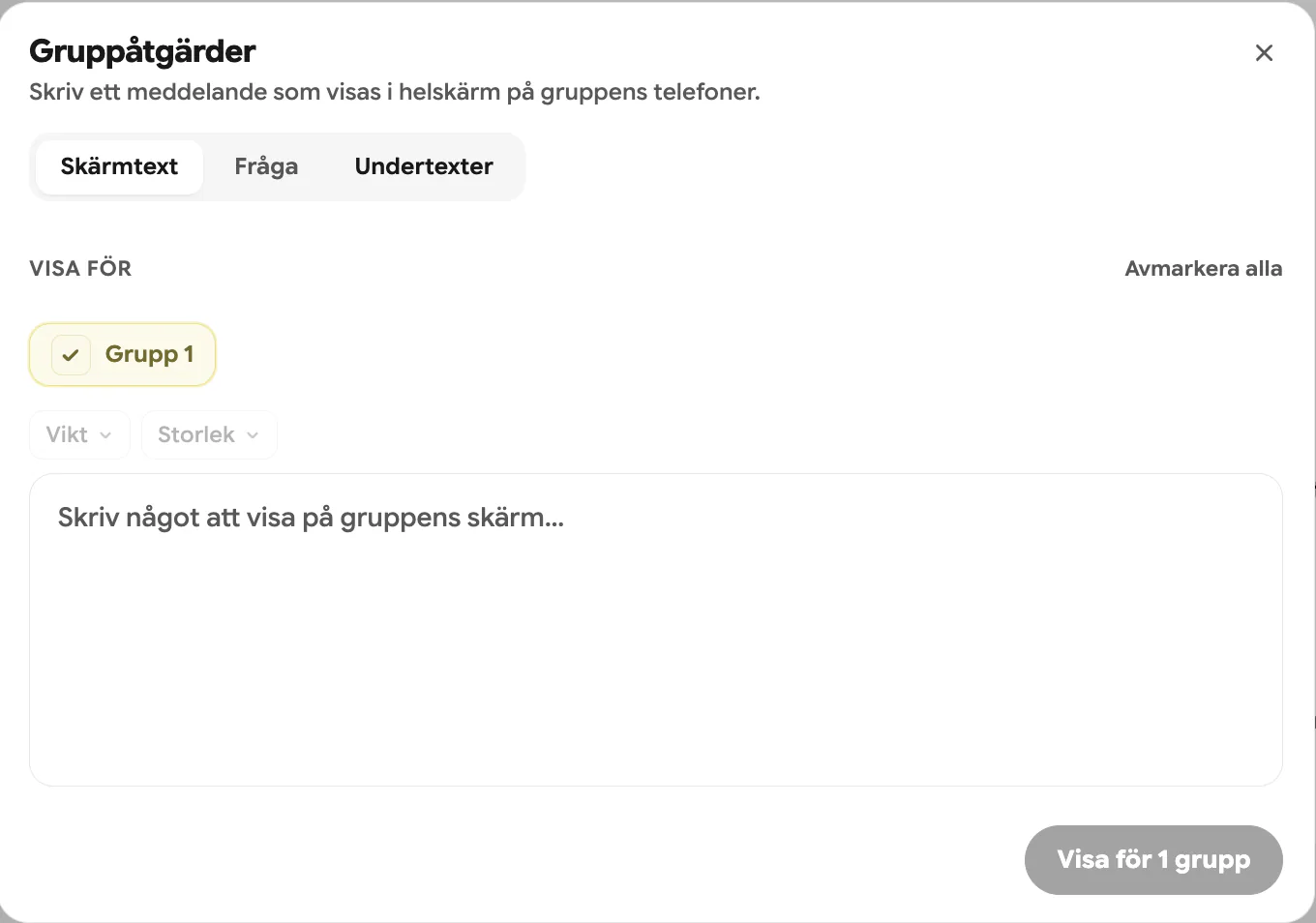
Every table's phone is more than a microphone, RoomRadar can use its screen too. From the live workspace you can send instructions to workshop groups live, run a quick multiple-choice question, or turn the phone into a captions display, all without breaking the conversation to walk over.
Open Group actions
Open the ... menu in the live header and choose Interact with groups, or open the same panel from the sidebar tool "Send text to groups." Both land on the same four tabs: Screen text, Question, Timer, and Live captions. If the conversation's sheet planned anything for the tables, the panel opens with those rows on top under "Planerat för det här samtalet", each with a Skicka nu button; see the section on planned sends below. Only groups connected by link or QR code can display anything, a table using the host's local microphone has no phone screen to show it on.
Send a formatted message
Run a live question
Switch to the Question tab to ask a multiple-choice question and watch the answers come in live, useful for a quick temperature check without derailing the discussion. Type the prompt, add two to six options, and send it to as many groups as you like. Sending a new question automatically closes the previous one, and results stream into a Results panel as groups respond.
Put a countdown on every table
The Timer tab starts a countdown that fills the group's phone screen: big digits with a ring draining smoothly around them, so anyone glancing at the table can see how long is left. The tab is one big dial: tap 5, 15, 30, 45 or 60 minutes, or type any time straight into the dial itself (7 for seven minutes, 7:30 if you want the seconds). Add a line of text above it if you like, such as "Wrap up your discussion", and start it. The last ten seconds turn red, and when it hits zero the phone plays a short chime and shows Time is up until you clear it.
Every group is preselected, so one click puts the same countdown on every table at once. While timers are running the tab shows a chip per group with the time left, and Stop the timer ends them early for the groups you have selected. Each group's row in the sidebar also shows its countdown as a small pill beside the group's name, ticking down, held while paused, and reading Done once the time is up, so you can see which tables have finished without opening the panel. The pill stays until you stop that group's timer. The timer counts from the moment you start it, measured on RoomRadar's clock, so a phone with the wrong time set still counts down exactly the right number of minutes, and a phone that joins halfway through picks up the countdown already in progress.
Turn on live captions and translation
The Live captions tab is a single dropdown: it streams a live transcription of the group's own discussion back onto their phone screens, to follow along by reading, or translated for multilingual groups. Choose a language to translate into, or leave it on No translation to show the spoken language as-is. The translated text lags the live line by a few seconds since it only translates finished sentences, not partial ones.
What was planned for the groups, and saving a send to the plan
A conversation's sheet has a row Till grupperna where you plan sends before the day: a screen text, a question or a timer, to all tables or some, sent "vid start", "efter 10 min", at a clock time, or "manuellt". Those rows show at the top of this panel under "Planerat för det här samtalet", each as one line, "Timer 10 min Diskutera · alla · efter 10 min", with Skicka nu on the right. A send that already went reads "skickat 10:42" and its button turns into Skicka igen. Timed sends go by themselves once the conversation is running; the buttons are for sending early, sending again, or sending the ones you marked manual.
The other direction works too. Anything you compose here on the fly, a message, a question or a countdown, has Spara i planen beside its send button, which adds it to the conversation's Till grupperna row as a manual send, so it is there next time you run this conversation or duplicate the day. See plan what the groups will see.
FAQ
Any group connected through a phone link or QR code, and digital groups joining by Zoom/Meet/Teams (they get the content posted into the meeting's chat). A table using the host's own local microphone has no screen, so it cannot receive anything.
Yes. History in the bottom left lists what has been on that group's screen, newest first, with the time it went up. Pick one and it drops back into the editor, ready to send again or edit first.
The original spoken-language text streams live; the translated line is added to each finished sentence a few seconds behind it, so participants see both.
The phone plays a chime (and vibrates where the phone supports it) and the screen shows "Time is up", and the group's pill in your sidebar reads Done, so a table that looked away still sees that their time has gone. A Stäng button appears under it, which hides the finished countdown on that phone only. It does not clear the timer for anyone else, and it does not affect what you see in the workspace.
No. The message, question or countdown appears on a panel across the top of the phone and the subtitles keep running underneath it. Both stay readable at the same time.
Yes. Select only the groups you want before starting, then start a second countdown for the others. Each group's phone shows its own remaining time.